

Events Linked to Cases
Add hearings, filing deadlines, and meetings to the client and case they belong to.

Schedule events on the case, share calendars with your team, and keep Google and Outlook up to date.
A hearing in one calendar, a filing deadline in another, and a client meeting in someone's inbox. Jurvexis puts every date on the case it belongs to.

Court dates and personal appointments clash because they never meet.

A filing date sits in one person's calendar and nobody else sees it.
Each event carries its client, case, and location, so your team always has the context.
Add hearings, filing deadlines, and meetings to the client and case they belong to.

Push Jurvexis events to your connected calendar, and choose to see outside appointments too.

Share your calendar as free/busy, view only, edit, or full delegate access.

Create the follow-up task while you schedule the event.

Log billable time for a hearing or meeting right from the calendar.
Keep the whole team working from the same dates.
Link your Google or Outlook calendar.
Add the event to the right client and case.
Give colleagues the level of access they need.
Create tasks and log time when the event is done.

Switch between your own calendar, calendars shared with you, and, for firm admins, every firm calendar. Use daily, weekly, or monthly views and filter by what matters today.
Useful details that keep your day on track.

Add the event types your practice uses alongside the standard ones.

Mark an event as only for you when the team does not need to see it.

Open the courthouse or meeting address in Maps from the event.

Clients see their upcoming dates in their own portal calendar.
Move from separate calendars to one schedule tied to your cases.
Guides and articles to help your firm get more from Legal Calendar in Jurvexis.
3 resources
Eliminate missed filing dates and coordinate multiple attorney dockets across regional courts automatically.
Connect evidence discovery, motion timelines, and counsel assignments into one real-time dashboard for complex litigation.
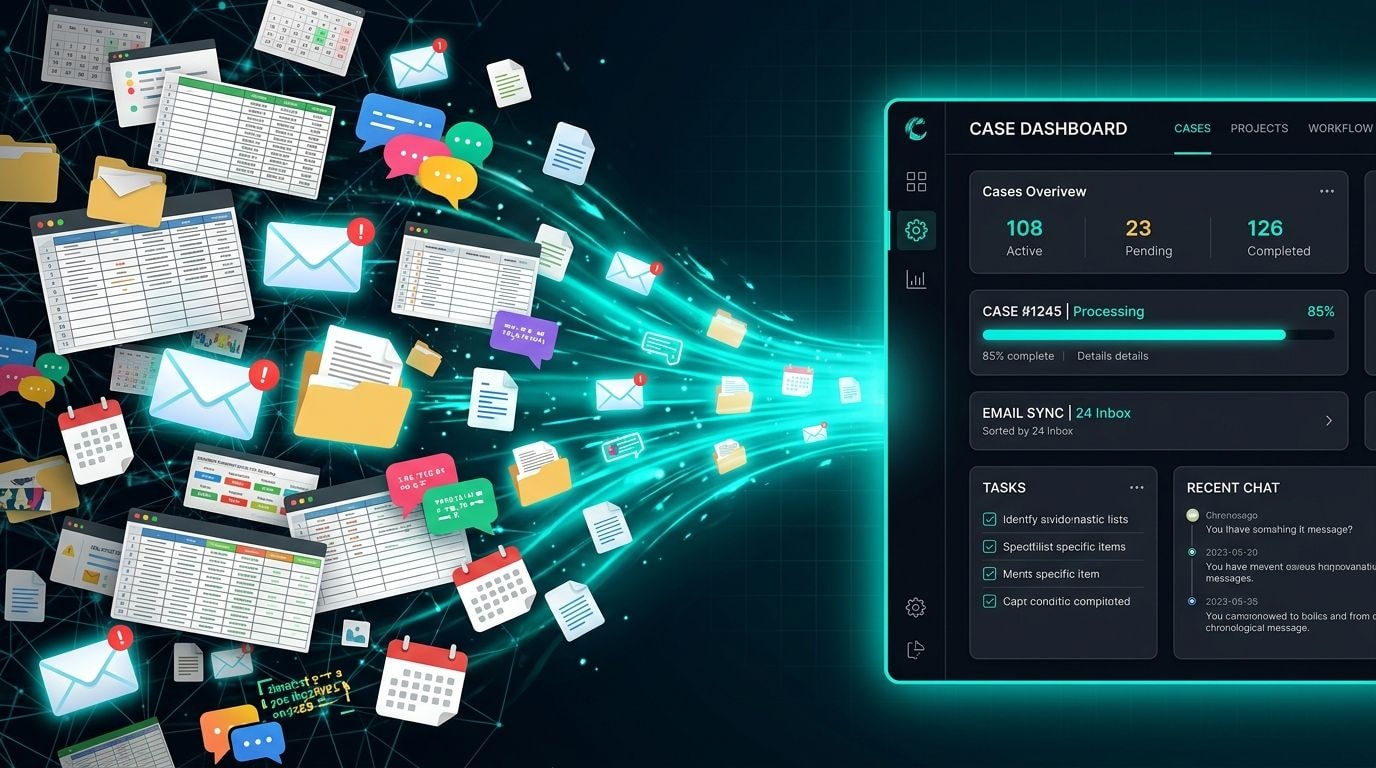
Missed deadlines, scattered files, and constant client calls are signs your firm needs case management software. Here's how to tell.
Straight answers before you start your trial.
You can connect Google Calendar and Microsoft Outlook. New and updated Jurvexis events can be pushed to them automatically.
Yes. Viewing outside events is optional. You can keep a one-way push, where Jurvexis sends events out and does not bring your outside appointments in.
You choose who you share it with. Pick free/busy, view details, edit, or delegate access for each person, and change or remove it at any time. Firm administrators can view firm-wide schedules.
Add seats whenever you need them. You are not forced onto a different plan, and your next invoice updates as soon as you make the change.

Keep every date connected to the case, so your team walks in prepared.